Use Log Filter to choose which records are displayed in the Log window. Open it with the filter button beside the filter selector in that window. Filtering changes the displayed records; it does not delete log entries or change the recorded project data.
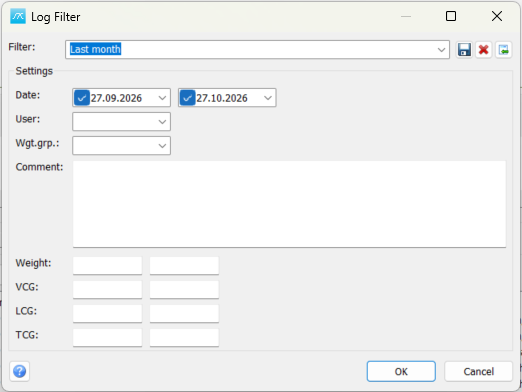
Select or define a filter
Filter: Select a saved filter to load its conditions, or enter a name for a filter you want to save. You can also apply conditions without saving a named filter. Active conditions are combined with AND, so each displayed record must satisfy all of them.
Date: The first date/time control specifies the earliest included log timestamp; the second specifies the latest. The limits are inclusive and include the time, not just the calendar date. The date checkboxes enable or clear the corresponding limits. The From and To limits can be enabled independently.
User: Choose or enter the user recorded in the log. Leave it blank to include all users. Text matching uses SQL LIKE patterns: a percent sign matches any sequence of characters and an underscore matches one character. Use a name without wildcards for an exact match.
Wgt.grp.: Choose or enter a weight group. Leave it blank for all groups. For example, E1.% matches group identifiers beginning with E1.; it does not automatically traverse the weight-group hierarchy.
Comment: Restrict the recorded comment text using SQL LIKE patterns. Use % for any sequence of characters and _ for a single character; for example, %engine% matches comments containing engine. Without wildcards, the complete comment must match. The condition is also stored and restored with a saved filter.
Weight: Enter the minimum in the left box and maximum in the right box to restrict the recorded weight value. Limits are inclusive. Leave either box blank to omit that limit.
VCG / LCG / TCG: The paired boxes specify inclusive minimum and maximum limits for the recorded centre-of-gravity values. Use values appropriate to the log data being inspected.
For example, select a date interval and a user to inspect records for that user within the interval. Add a weight-group pattern if required. If no records appear, remove conditions one at a time and check the date/time limits and spelling.
Save, delete or import filter definitions
Save icon: Save the current non-empty conditions under the name in Filter. A name is required. Confirm replacement when a different filter already uses that name. Saving requires ProjectInfo Edit permission.
Delete icon: Delete the named filter definition and clear its controls. This does not delete any log entries. Deleting a definition requires ProjectInfo Edit permission.
Import icon: Choose a source database and project and copy its saved log filter definitions. The operation can ask about filters with the same name and different conditions. Importing requires ProjectInfo Import permission and affects saved definitions, not the log records.
Saved, deleted and imported definitions are written when those actions are performed. Cancel does not undo those completed actions.
Apply or close
OK: Apply the entered conditions to the Log window and close. Depending on the filter name and your permissions, the program offers to save a new or changed definition. Saving the definition is separate from applying it.
Cancel: Close without selecting the newly entered filter for the Log view. Previously completed Save, Delete or Import actions remain in effect.
Help: Open this help topic. F1 opens the same page.