The Re-Estimate window compares alternative sets of estimation parameters and their effects on weight and centres of gravity. Use it to explore design alternatives before choosing which results to apply to the current project. Open the window from Estimate > Re-Estimate Alternatives.
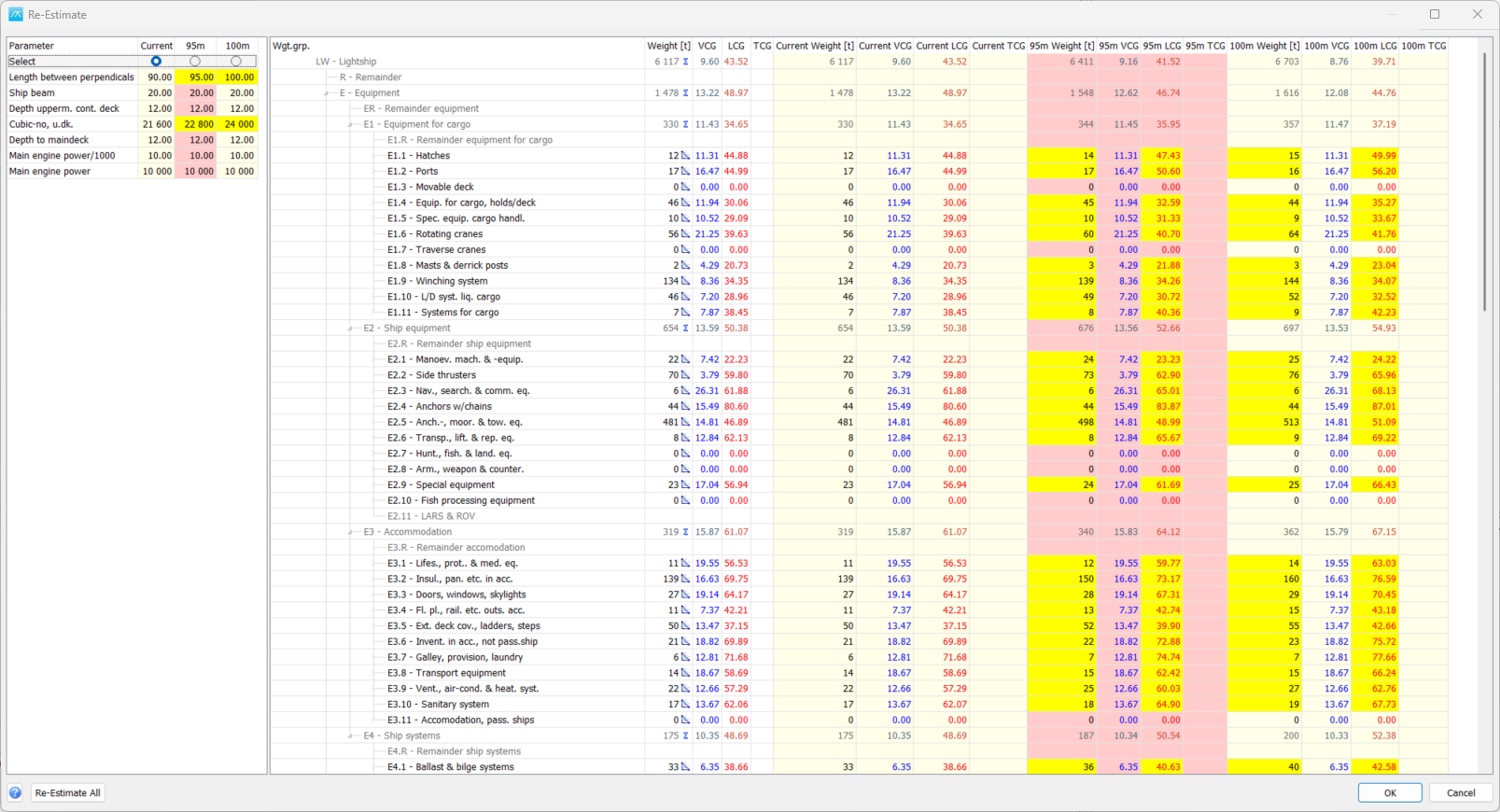
Comparison of the current project with 95 m and 100 m variants. Yellow cells highlight changed parameters and estimated results.
Before you start
Set up the weight-group estimates and their estimation methods first. Re-Estimate uses the existing estimation settings and reference-project selections. It recalculates values with status Estimate (E); it is not a tool for changing every item weight or replacing all weight-group values with estimates.
The parameter list contains parameters used by the configured estimates, rather than every project parameter. If the list is empty, check that the relevant weight groups have status Estimate and that their methods use project parameters.
Read the two tables
The left table shows estimation parameters, with a column for Current and each added variant. Current uses the current project parameters and is not directly editable here. The Select row contains radio buttons that choose the variant to apply if you later accept the results.
The right table shows the weight-group hierarchy. Its first set of Weight, VCG, LCG and TCG columns contains the project values. Further sets show the recalculated Current values and the values for each variant. Current can differ from the project columns when the existing estimates have not yet been updated for the current parameters.
Yellow parameter cells indicate values that differ from the current project parameters. Yellow result cells identify estimated values that differ from the project values. Other background colours distinguish variants. Coordinate labels and units follow the project configuration.
Create and calculate a variant
1. Right-click in the parameter table and choose Add Variant. Enter a unique name. A new variant starts with the current project parameters and a copy of the Current results.
2. Click the parameter values in the new variant column and enter the alternative values. Read-only, text and calculated parameters cannot be edited here. Changed input values enable Re-Estimate All; the result table still needs to be recalculated.
3. Click Re-Estimate All to update variants with changed parameters, or use Re-Estimate in the right-click menu for a particular variant. Review any calculation messages before using the results.
4. Compare the variant columns with the project and Current columns. Expand the weight-group tree to inspect the groups responsible for a change. Check weight and centres of gravity together.
5. Repeat with additional variants as needed. For example, compare two alternative values of a design parameter used by your estimation methods, then review their effects on the estimated groups and the total.
Manage variants and inspect estimates
The right-click menus provide Rename Variant, Delete Variant and Back color for the applicable variant. Current cannot be deleted. Copy places the displayed table contents on the clipboard for use in a spreadsheet or report.
Import Project Variant in the parameter-table menu creates a variant using parameter values read from another project. This imports parameter values for comparison; it does not copy that project's items or its complete weight breakdown. Review and recalculate the variant before relying on its results.
Double-click an estimated result in a variant column, or choose Open Estimate from its right-click menu, to inspect the estimate in a read-only estimation window. Estimate Setting opens the selected weight group's estimation settings. Those settings belong to the project and are not a separate setting for each variant; changes made in that settings dialog are handled there.
Save variants or apply a result
Recalculating a variant updates the comparison in this window. It does not by itself replace the current project parameters and weight-group values.
Before clicking OK, use the radio button in the Select row to choose the intended variant and make sure its results have been recalculated. With estimation edit access, OK saves the variant names, colours and parameter values. Saved variants are reconstructed using the project's estimation settings when the window is opened again.
If the selected variant has changed estimated results, the program asks whether to save those results to the project. Answer Yes to copy the selected variant's parameter values and weight-group results into the current project. Answer No to keep the project values while retaining the saved variant setup.
Cancel closes the window without saving the variant edits or applying a variant. Changes already accepted in a separately opened Estimate Setting dialog are not undone by cancelling this comparison window.
Press F1 or click the Help button at the bottom left to open this topic.