The 3D View window displays weight items and weight groups as boxes in a three-dimensional view, together with their centres of gravity. Use it to check positions, extents and the spatial distribution of weights. Open the window from View > 3D View.
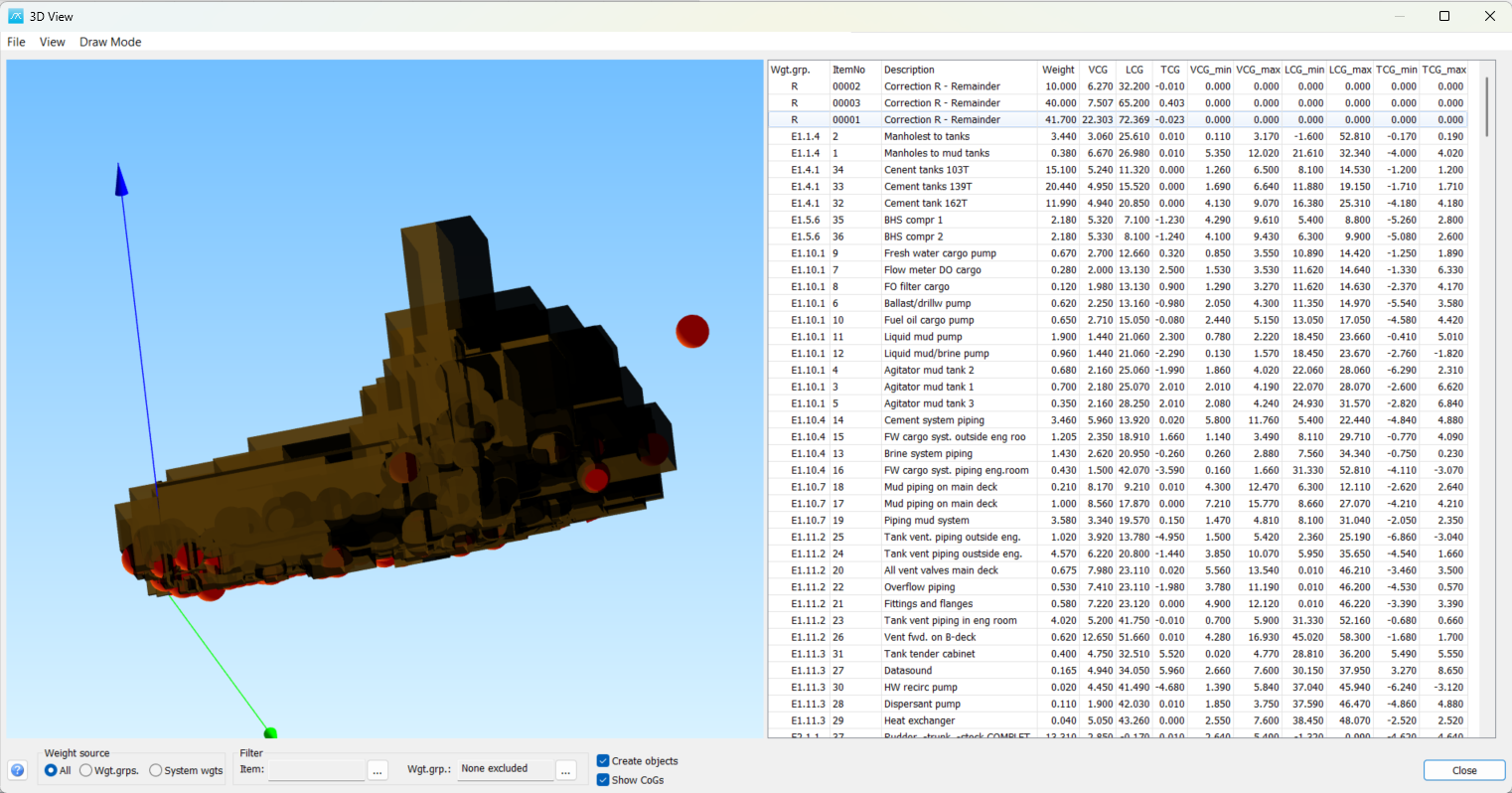
The 3D View window showing weight-item extents, centres of gravity and the corresponding item list.
Choose the weights to display
The Weight source controls select the data shown in the object list and the 3D view. All displays individual weight items from the included item-based weight groups. Wgt.grps. displays weight-group representations. System wgts. displays the system weights prepared by the weight-distribution calculation. These are alternative representations; All does not mean that all three sources are drawn together.
Use the ... button beside Item to define an item filter, or the ... button beside Wgt.grp. to choose weight groups. The fields beside these buttons show the current selections. Item filtering applies to the item data; it does not redefine the stored weight-group totals. Check the selected weight source when comparing the view with other windows.
Create objects and show centres of gravity
Select Create objects to build the boxes for the selected weight source. The table lists Wgt.grp., ItemNo, Description, Weight, VCG, LCG and TCG, followed by the minimum and maximum coordinates in each direction.
Box position and size come from LCG_min/LCG_max, TCG_min/TCG_max and VCG_min/VCG_max. The boxes represent the recorded weight extents; they are not detailed equipment shapes or a hull model. The coordinate directions correspond to longitudinal (LCG), transverse (TCG) and vertical (VCG) position. Values follow the project units.
If an item has both minimum and maximum coordinates set to zero in a direction, Default Extension supplies an extent centred on its centre of gravity in that direction. Configure this under Options > Weight Distribution Curve. Check the source coordinates and extents if a box appears in an unexpected position or is very small.
Select Show CoGs, or Draw Mode > CoG sphere, to display a red sphere at the centre of gravity of each displayed object. These controls operate the same setting. Sphere size is a display aid and does not represent weight or physical volume.
Inspect and select objects
Point at a box to see its weight group, item number where applicable, description, weight and centre-of-gravity values in a tooltip. Hover information is available independently of View > Select.
Enable View > Select and click a box to select its corresponding row in the table. Clicking a table row highlights the corresponding box in red. Dragging in the 3D view changes the view rather than moving the stored weight object. Selecting or highlighting an object does not edit its weight or coordinates.
Change the view
Use View > XZ-View for the longitudinal/vertical plane, YZ-View for the transverse/vertical plane, XY-View for the longitudinal/transverse plane, or Isometric View for an overview. View > Ortho uses parallel projection; Perspective introduces depth perspective.
Use the mouse controls in the 3D area to navigate and zoom the view. View > Show Axis toggles the coordinate-axis display. Choose a standard view again when you want a clear reference direction.
Draw Mode provides Solid, Transparent and Wire representations. Transparent and Wire can help reveal boxes hidden behind other boxes. Colours identify weight groups; View > Settings opens the weight-group colour settings.
Copy, print and close
Use File > Copy to Clipboard to copy the current 3D image, or File > Print to open Print Preview. Set the viewing direction and display mode before copying or printing. Close returns to the main window.
If the view is empty or unexpected
Check Create objects, the selected Weight source and both filters. Confirm that the project contains weights for the selected source and that their coordinates and extents are sensible. Show CoGs can help identify positions when boxes overlap. The three weight sources need not contain the same rows, so compare their table entries before drawing conclusions from the picture.
Press F1 or click the Help button at the bottom left to open this topic.