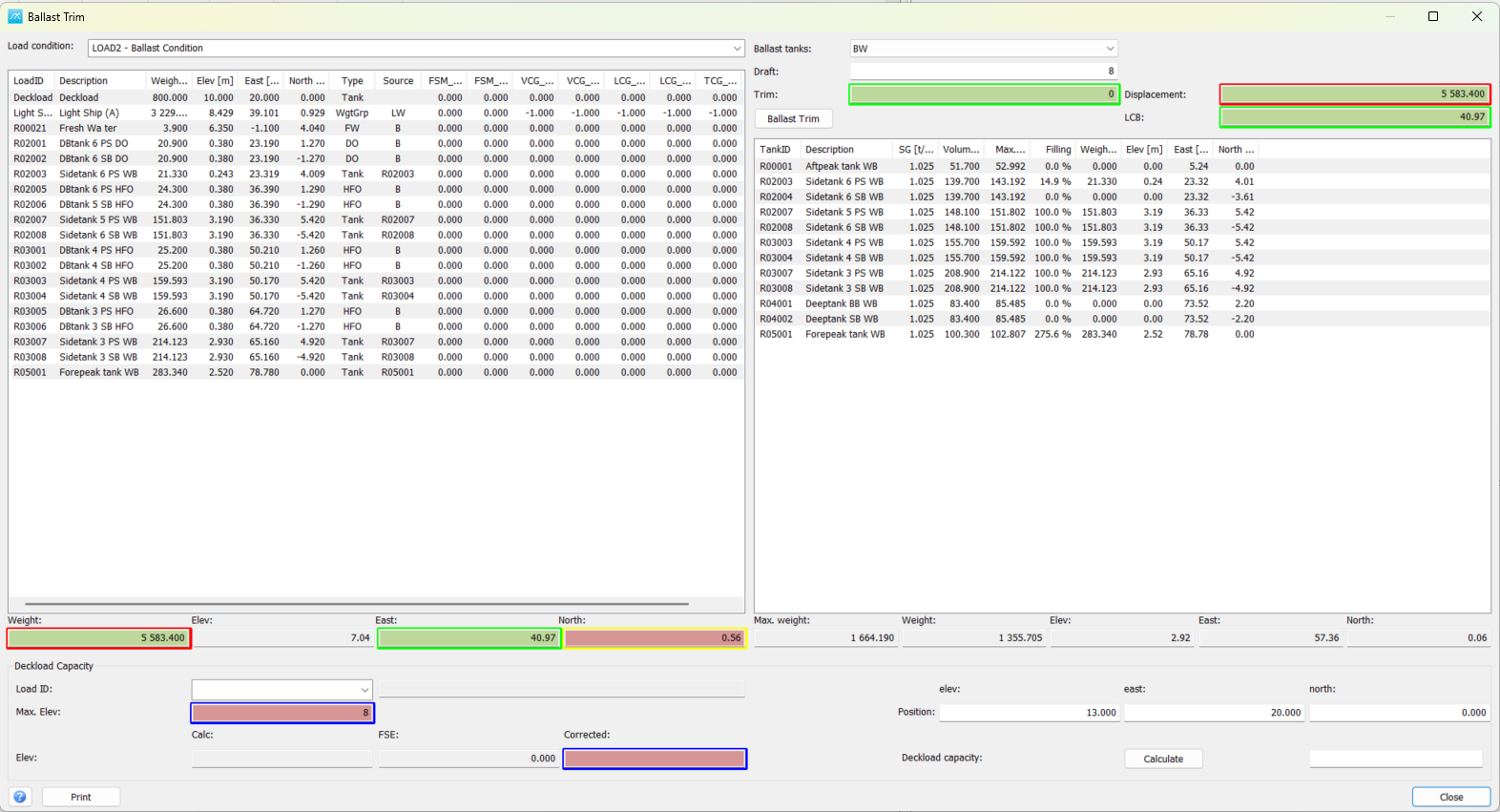
The Ballast Trim window adjusts the tank contents of a load condition towards a specified draft and trim, with zero transverse centre of gravity as the heel target. It also calculates deckload capacity against a specified maximum vertical centre of gravity. Open Load Conditions, select the required load condition and click Ballast Trim.
Before calculating
Define the load condition and its loads in Load Conditions. Check the tank definitions, including tank type, volume, density (SG), positions and sounding data. The Ballast tanks selection chooses a tank type, not an individual tank.
Hydrostatics must contain values covering the required draft and displacement, including LCB and the MCT data needed for trim calculations. Sounding data must cover the tank volumes used in the calculation so that tank centres of gravity and free-surface values can be determined.
The calculation and tank-filling commands update loads in the selected load condition directly. They are not a separate preview awaiting an Apply command. Use a separate load condition if you want to retain the starting arrangement for comparison. Closing the window does not undo changes already made to loads.
Set the targets and calculate
1. Select Load condition. The list on the left shows its loads. Weight, VCG, LCG and TCG below the list show the combined weight and centre of gravity.
2. Select the tank type under Ballast tanks. The tank list shows the tanks of that type and their current contents in the selected load condition.
3. Enter the target Draft and leave the field to update the corresponding Displacement and LCB from the hydrostatic data. Enter the required Trim; zero requests an even-keel condition. Coordinate labels and units follow the project configuration.
4. Click Ballast Trim. The program first adds or removes ballast towards the displacement associated with the target draft, then adjusts longitudinal balance for trim, and finally adjusts transverse balance towards zero TCG.
5. Review any messages and check the resulting total weight, centres of gravity and tank contents. The three operations run in sequence, so verify the combined result rather than assuming that every target was reached.
Read and adjust the tank results
The ballast-tank list shows each tank's identification and description, density, volume, maximum content weight, filling percentage, current weight and centre of gravity. Max. weight below the list is the combined content weight when all listed tanks are full. The other totals describe their current contents.
Select tank rows and right-click for Full, Empty or Fill... to set their contents. These commands update the tank loads in the selected load condition and refresh the totals.
The context menu also provides Ballast, Trim and Heel to run the individual adjustment steps. These operations use the selected tank type and load condition; selecting an individual row does not restrict the automatic calculation to that tank. Copy copies the selected tank data, and Select All selects the list.
If a target cannot be reached, check the available ballast volume, tank positions, existing contents and the hydrostatic and sounding ranges. Correct the data or adjust the targets, then calculate again.
Deckload Capacity
Select the load to adjust under Load ID. Its description and position are shown in the Deckload Capacity section. The selected load must exist in the load condition.
Enter Max. VCG for the load condition and the deckload position. The position fields represent its vertical, longitudinal and transverse centre of gravity. Changing these fields updates the selected load's position.
Click Calculate to adjust the deckload and ballast towards the maximum corrected VCG, using the ballast, trim and heel calculations. The procedure is iterative and can stop when further adjustment is not possible; review the achieved values and messages.
Deckload capacity shows the selected load's weight after the calculation. You can also enter its weight directly and leave the field to update that load and the displayed results.
Calc VCG is the combined load-condition VCG. FSE is the free-surface correction, and Corrected VCG is Calc VCG plus FSE. Compare Corrected VCG with Max. VCG. The calculated capacity relates to these specified targets and the available tank arrangement; it is not a check of deck structural capacity or a complete stability assessment.
Buttons and saving
Print: Opens the ballast-trim report for preview and output, including the load-condition totals, tank results and deckload information. Printing requires permission to output weight information.
Close: Stores the window's selected load condition, tank type, target values and deckload position settings, then closes the window. Load changes made by calculations and editing have already been written to the project data.
Related documentation
See Loading Conditions and Hydrostatics for the load-condition setup and hydrostatic data used by Ballast Trim.