4.4 The Auto Estimation Window
Use Select Weight Groups to choose the weight groups included in the operation or filter you are setting up. The window displays the project's weight-group hierarchy. It changes a selection; it does not create or delete weight groups or change their weights by itself.
Open the window
In Auto Estimation, select User Def. as the detail level and click the adjacent … button. In Generate Default Coefficient, click Wgt.Groups. The same selection window is used by estimation setup and by the weight-group filter controls in Weight Distribution, Gyradius and 3D Plot.
The selection rules depend on where the window was opened. For estimation-related selections, the window helps you choose groups at the required detail level without including both a parent total and its contributing subgroups. For the weight-group filters in Weight Distribution, Gyradius and 3D Plot, it allows a branch of the hierarchy to be included together.
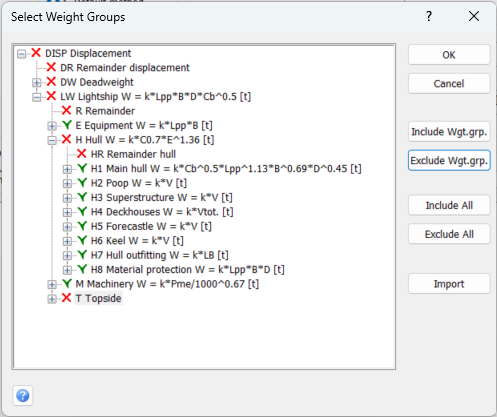
Highlighting and inclusion are different
Expand or collapse the tree to find a group, then click its row to highlight it. The highlight identifies the group affected by the buttons. The inclusion icon beside the group shows whether it is included in the selection. Highlighting a row alone does not include it.
Review the inclusion icons after using a button: the selection rules can also change parent groups or subgroups.
Select groups for estimation or coefficient setup
Button |
Effect |
Include Wgt.grp. |
Include the highlighted group. Exclude its ancestors and all its descendants from the selection. Other branches remain as they were. |
Exclude Wgt.grp. |
Exclude the highlighted group. This does not automatically include its parent or subgroups. |
Include All |
Include the highlighted group and its siblings under the same parent. Exclude their descendants and their ancestors. It does not mean every group in the entire tree or every group at that depth in other branches. If the root is highlighted, only the root's inclusion state is changed. |
Exclude All |
Exclude the highlighted group and its siblings under the same parent. Existing subgroup selections are not cleared automatically. If the root is highlighted, only the root is excluded. |
For example, suppose H – Hull has the direct subgroups H1–H8. To work at the Hull total level, highlight H and click Include Wgt.grp.: H is included and H1–H8 and their descendants are excluded. To work at the next level instead, highlight H1 and click Include All: H1–H8 are included, while H and the descendants below H1–H8 are excluded. Do not add the Hull total to those subgroup results as a separate contribution.
Select groups for a weight-group filter
Button |
Effect |
Include Wgt.grp. |
Include the highlighted group and its ancestors. Existing descendant selections remain unchanged. |
Exclude Wgt.grp. |
Exclude the highlighted group and all its descendants. |
Include All |
Include the highlighted group, all its descendants and its ancestors. With the root highlighted, this includes the whole tree. |
Exclude All |
Exclude the highlighted group and all its descendants. With the root highlighted, this excludes the whole tree. |
For example, to include the entire Hull branch in a filter, highlight H and click Include All. To remove the H2 branch afterwards, highlight H2 and click Exclude Wgt.grp.. Review the final tree before confirming. The calling window determines how the resulting selection is used in its calculation or display.
Reuse a selection from another project
Click Import to choose a source database and project. The command identifies weight groups estimated in the source project and marks matching groups in the current tree. The source lookup first uses weight groups with estimated weight status; if none are found, it looks for groups with stored estimation settings and as-built weight status.
This imports a weight-group selection, not item data, weight values or complete estimation settings. Only identifiers available in the current hierarchy can be matched. Review the resulting icons before clicking OK. The command requires Setting > Import permission.
Use or discard the selection
Click OK to return the included groups to the window that opened the selector. Continue with the calculation, coefficient generation or filter operation in that window. Click Cancel to close the selector without replacing the original selection.
See also: 4.4 The Auto Estimation Window
See also: 4.11.4.1 Generate Default Coefficient
See also: 4.1 Weight Distribution
See also: 4.2 Gyradius
See also: 4.15 3D Plot of Weights