Use Chart Setting to change how the chart in Code Summary is displayed. Open Chart Setting... from the chart right-click menu or the Code Summary weight-group tree menu. The options change the presentation of the chart, not the underlying item or weight data.
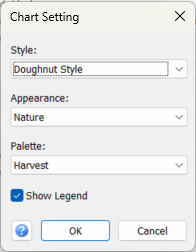
Chart controls
Style: Choose the chart type. Available choices are Point Style, Line Style, Spline Style, Bar Style, Area Style, Spline Area Style, Bubble Style, Pie Style, Doughnut Style and Pyramid Style. The diagram changes immediately so that you can inspect the result.
Appearance: Choose the overall visual theme, including the chart background, borders and other presentation details. The theme is separate from the colour palette used for the plotted values.
Palette: Choose the colour scheme for the plotted values. Use a palette that keeps the categories easy to distinguish, particularly when printing or presenting the chart.
Show Legend: Show or hide the chart legend. Enable it when the category names are needed to interpret the colours or plotted values.
Choose a suitable style
Pie and Doughnut styles show the parts of a total. Bar Style makes category sizes easier to compare. Point, Line, Spline and Area styles offer other ways to display the same chart series; connecting category values does not make them a time series or a physical curve. Choose a style that suits the meaning and order of your categories.
Changes are previewed on the chart while this window is open. Review the labels, legend and relative values in the underlying chart before accepting the settings.
Accept or cancel
OK: Keep the selected style, appearance, palette and legend option for the Code Summary chart and close the window.
Cancel: Close and restore the previous Code Summary chart settings, including the original style, appearance, palette and legend visibility.
Help: Open this help topic. F1 opens the same page.