Use Composite Parameter to inspect the component values used by a calculated project parameter. Open the detail view for a composite parameter from the parameter view or parameter-value dialog. The contents follow that parameter definition; different composite parameters can contain different component values or weight-group references.
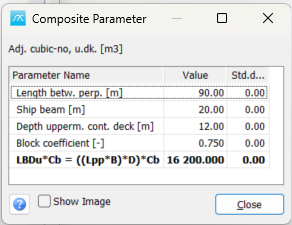
Read the component tree
Parameter name: The name above the table identifies the composite parameter being inspected. Check it before changing component values.
Parameter Name column: Shows the components that contribute to the composite parameter. Expand the hierarchy where available to inspect nested definitions.
Value column: Shows the current component value. Editable input parameters can be changed here, while calculated composite entries and referenced weight-group entries can be read-only. Follow the displayed parameter units and the conventions of the parameter definition.
Std.dev. column: Shows component uncertainty when standard deviation is enabled for this view. A value normally needs to be specified before its standard deviation can be edited. The interpretation depends on the standard-deviation mode used by the calling parameter or estimation window.
Edit and inspect
Select an editable value cell and enter the required value. Finish editing the cell to apply it and refresh the displayed component values. Availability depends on the component type, permissions and whether the window shows current-project or reference/estimation data.
Changes may update the underlying parameter or the value set supplied by the calling window as soon as editing finishes. Close is not a Cancel or Undo command. Check the resulting parameter values in the calling window after closing.
The right-click menu offers Copy for the displayed component table. Double-clicking an empty table area can adjust the column widths to fit their contents.
Show Image: Show the associated illustration when one is defined. The image can help interpret the parameter geometry or component inputs. Clear the checkbox to give the table the full width. When the image is shown, drag the divider to adjust the relative space for the table and illustration.
Close and help
Close: Finish the current edit and close the detail view. The caller can then refresh or calculate the composite result from the component values.
Help: Open this topic. F1 opens the same page.
If a required component is blank or cannot be edited, inspect its type and definition and whether the value is calculated elsewhere. Do not replace a calculated component with an assumed value merely because the cell is read-only. The application option for calculating incomplete composite parameters can affect how missing inputs are handled.
For entering project parameters, see 2.3 Enter Parameter Values.