Use Line Definition to define reference lines and their points for the Weight Distribution views. Open the line-definition button in Weight Distribution. The upper table contains the line definitions; the lower table contains the points belonging to the selected line.
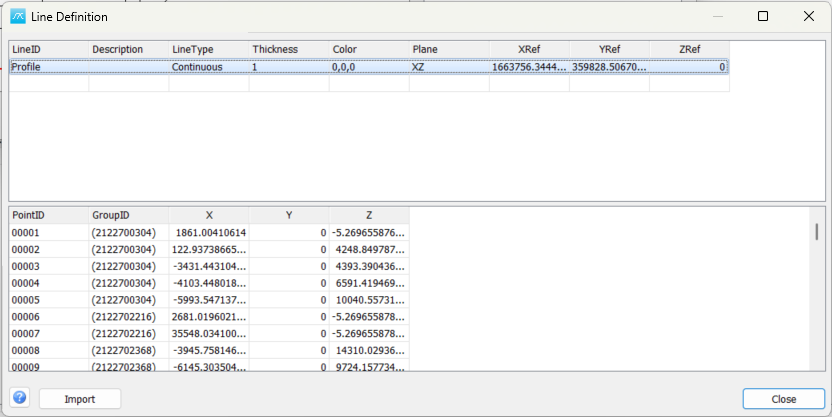
Define a line
LineID: Identifier of the line. Use a distinct ID so that its points and display selection can be associated with the intended line.
Description: Descriptive name for the line, for example a deck edge or outline.
LineType: Choose Continuous, Dash, Dot or Dash dot for the drawing style.
Thickness: Line thickness used when drawing the line. Choose a thickness that remains readable at the scale of the Weight Distribution view.
Color: Drawing colour. The stored value uses red, green and blue components; use the colour-selection editor where available.
Plane: Choose XY, XZ or YZ for the reference plane associated with the line definition. X is longitudinal, Y transverse and Z vertical.
XRef / YRef / ZRef: Reference coordinates associated with the line definition. Imported drawing data can use these as its reference position. Keep these consistent with the chosen plane and the point coordinates.
Define the points
Select the required line in the upper table before entering or editing points in the lower table. Each point is stored against that line. Use the empty row to add an entry, then finish the cell edit to store it.
PointID: Identifier for a point within the selected line.
GroupID: Grouping identifier carried by the point data. It is part of the line geometry and is separate from the project weight-group classification.
X / Y / Z: Point coordinates: longitudinal X, transverse Y and vertical Z. Use a consistent coordinate origin, direction and length convention across the drawing and project. Inspect the plotted result after entering or importing coordinates.
Table editing and import
Select cells to edit the line or point data. The right-click menu offers Select All, Copy, Paste and Delete for the active table. Check which table is active before pasting or deleting; deleting line definitions or points changes the stored drawing data.
Import: Read lines and points from a supported tab-separated text drawing file. The import expects the specific drawing format with GroupConfigurations and DrawingConfiguration sections, not an arbitrary table of coordinates. Existing entries with matching identifiers can be updated. The command requires ProjectInfo Import permission.
The import parser handles the drawing colour, style, reference plane and reference position, and transforms imported point coordinates for that plane. Check the resulting lines and points before using the drawing as a visual reference.
Show the lines
After closing Line Definition, the Weight Distribution window refreshes its line list. Select the required lines in that window for display. Defining a line does not mean that every view automatically displays it.
Close and help
Close: Close the window and return to Weight Distribution. Table edits and imports are stored as they are performed; Close is not a separate Save command and closing is not an undo operation.
Help: Open this topic. F1 opens the same page.