A part is a Master Item definition without components. An assembly is a Master Item definition with one or more component links. Both retain their own saved weight and CoG. The same part or subassembly may be used by several assemblies; changing a definition is therefore different from changing one occurrence of it.
Create an assembly using drag and drop
Create and save the required definitions in the upper tree first. Drag a part or subassembly onto the intended parent definition. Dropping onto a part creates its first component link, making it an assembly. Review and confirm the message before adding the components.
Use Ctrl to select separate rows or Shift to select a range, then drag the selected rows together onto the parent. Dragging adds component links; it does not move or delete the source definitions. Each added occurrence starts with component NoOff 1 and zero translation and rotation.
Components must belong to the same library as their parent. An assembly cannot contain itself, directly or indirectly. If a selected batch would create a circular link, the complete drop is rejected. Correct the selection or choose a different parent.
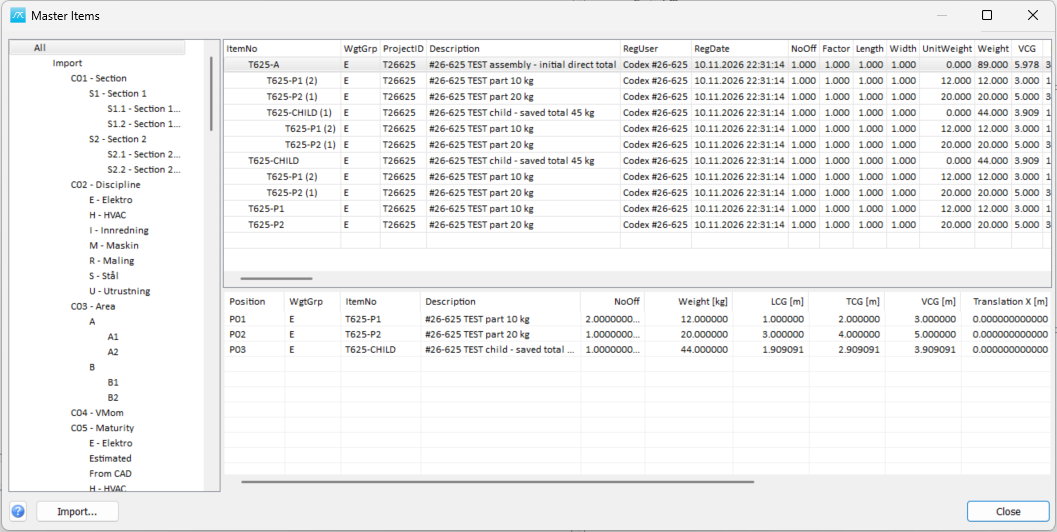
The number in parentheses in a component node, for example T625-P1 (2), is its quantity in that parent assembly. It is display text and is not part of ItemNo. A subassembly can be expanded to show its own components; those child quantities apply within that subassembly.
Edit the component table
Select the assembly to list its direct components in the lower table. The table contains only the defined component rows. To add a new part, create its definition in the upper tree and drag it onto the assembly; there is no blank entry row in the component table.
Double-click Position, ItemNo, NoOff, Translation or Rotation to edit. Position identifies an occurrence within this assembly and must be nonempty and unique there. ItemNo selects an existing component definition from the same library. Component NoOff must be positive. A component may have several occurrences with different positions and transformations.
The component NoOff multiplies the saved total Weight of the referenced definition. It is separate from that definition's own NoOff, Factor, Length and Width. The Weight, description and CoG columns show the referenced definition's saved values and are not edited as occurrence data.
Translation X/Y/Z is in metres; Rotation X/Y/Z is in degrees. X corresponds to LCG, Y to TCG and Z to VCG. Rotations are applied about X, Y and Z before translation, placing the component CoG in the parent assembly coordinate system.
Component edits are saved when you change component row, select another assembly or close Master Items. Invalid values prevent navigation or closing until corrected. Escape cancels a cell edit; Escape again can discard pending component-row changes.
Right-click a component and choose Remove component to remove its link from this assembly. The component definition remains available in the library and in other assemblies. Changes to membership, quantity or placement do not automatically replace the assembly's saved weight or CoG.
Sum weight and CoG explicitly
Right-click in the component table and choose Sum to assembly. Review the current and proposed weight and CoG, then choose Yes to replace the saved master assembly total, or No to leave it unchanged. This is an explicit calculation; the assembly can also have its Weight and CoG defined directly on its main row.
The calculation sums each direct component's saved ITEM Weight multiplied by its component NoOff. It calculates the mass-weighted CoG after applying the occurrence transformation. UnitWeight is reconciled with the parent definition's own quantity product.
A subassembly contributes its saved total once. Its children are not recursively added again, and the component definition's own quantities are not multiplied a second time. If a lower-level assembly needs recalculation, sum it first, then sum its parent.
For example, 2 occurrences of a part saved at 12 kg plus a subassembly saved at 45 kg give 69 kg. The subassembly contributes 45 kg regardless of the weights currently shown on its expanded child nodes, until you explicitly recalculate that subassembly.
If required component data is unknown, review the validation message. Unknown component weight prevents a complete sum. Where CoG cannot be calculated or total mass is zero, the application can offer an explicit weight-only update that retains the assembly's existing CoG.
Project updates and requirements
Sum to assembly updates the master definition only. Existing project items remain unchanged until you run the separate project update operation. Importing or updating an assembly in a project uses its saved total; the assembly membership is maintained in the historical library.
The historical database must contain the ASSEMBLY_ITEM table supplied with this feature. Library definitions remain in ITEM. Ask the database administrator to install the approved database update before testing assembly editing; the window does not create the table automatically.
Drag the narrow vertical divider to resize the left filter tree, or the horizontal divider between the item tree and component table to adjust the panes. The Help icon is at the bottom left; F1 and the icon show the same in-window guidance.