Master Items is a reusable library of part and assembly definitions. Use it to maintain standard descriptions, quantities, weights and centres of gravity, then import selected definitions into project items. The library is stored in the configured historical database. Its library identifier is the ProjectID field; this is distinct from the destination project currently open in the application.
Open and browse the library
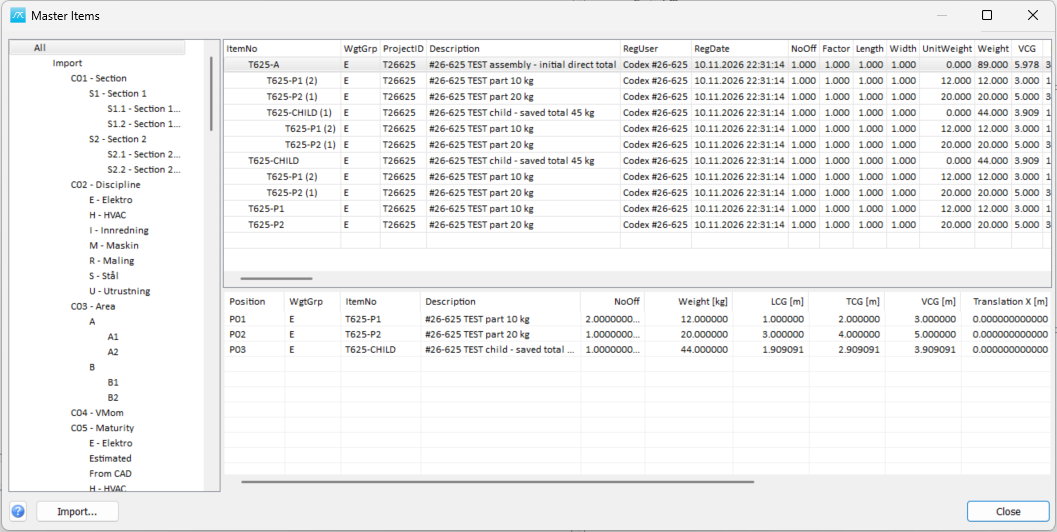
Open Database > Master > Items. The left-hand tree filters the library by its defined custom codes. The upper-right tree shows item definitions and, where components are defined, their assembly structure. The lower table shows the direct components of the selected item. Expand or collapse an assembly to inspect its contents.
An item is identified by the combination of ProjectID (library), WgtGrp and ItemNo. The same ItemNo can identify different items in different libraries or weight groups. A duplicate of the complete key cannot be created.
Create or edit a definition
Use the blank row at the bottom of the upper tree to create a part. Enter ItemNo, ProjectID and WgtGrp, and check the library and weight group suggested from the selected definition. Add a description and the required weight and CoG data. Change rows or close the window to save. A fresh blank row is available after the new definition is saved.
Edit existing parts and assemblies on their main definition rows. Click a selected editable cell again, double-click it, or press Enter to start editing. Description, NoOff, Factor, Length, Width, UnitWeight, Weight, LCG, TCG and VCG can be edited. Existing ProjectID, WgtGrp and ItemNo values are protected. Component occurrences displayed underneath assemblies refer to the same definitions and are not separate editable copies.
Changes are saved when you change rows or close the window. Invalid values or a duplicate new-item key prevent saving; correct the value and try again. Press Escape to cancel a cell edit. With no cell editor active, Escape can discard pending definition changes.
Weight and quantities
Weight = NoOff x Factor x Length x Width x UnitWeight. Changing a quantity or UnitWeight recalculates Weight. Changing Weight directly calculates UnitWeight by dividing by the product of the four quantities. If all four quantities are 1, UnitWeight equals Weight.
Quantities and weights must be finite and nonnegative. A nonzero Weight requires a nonzero quantity product; a zero quantity therefore prevents calculating UnitWeight from a positive Weight. Correct the zero quantity, enter the intended Weight again and save. Weight 0 with a zero quantity product is handled without division by zero.
Import definitions into the library
The Import button in this management window opens Custom Import with Historical / ITEM as its destination. Use its import settings to map external fields to the library item fields. This imports item definitions; it does not directly select items from a running project.
Assembly references and component membership are not imported by Custom Import in this version. Import the part and assembly definitions first, then create the component links manually in Master Items. An imported assembly weight remains a directly stored total until you explicitly choose Sum to assembly.
Import Master Items into a project
In the Items window, use Import > Import from Master Item Database. A Master Item Code Type must be configured in View > Options > Codes. Use the Master Item Import Setting command in the Items window to define the mapping between master fields and project fields. The application prompts for missing import mapping when needed.
Select the required definitions and choose Import. This copies the mapped values into project items and records the master reference in the configured custom code. For an assembly, the saved Weight and CoG from its master definition are used. The component structure is not expanded into project items.
Update linked project items
In the Items window, Tools > Update Master Items updates linked project items from their master definitions using the configured field mapping. Review the mapped fields before updating: they determine which project values can be replaced. Changes in the library do not automatically update project items.
The current project master reference stores library and ItemNo, without WgtGrp. For definitions used in linked project updates, keep ItemNo unique within the library, including across weight groups, so that the update identifies the intended master definition.
Summing an assembly and updating project items are separate operations. First review and, if required, sum the master assembly. Then explicitly update the project items when you want them to receive the saved master values.