Use Weight Decomposition to estimate a breakdown of a reference project's lightship weight (LW) into weight groups when the available information is limited. The breakdown uses percentage profiles and the WBS00 hierarchy of the open project. Open the window from Database > Decomposition....
The window reads projects from the connected historical or cloud database. Calculating a breakdown creates a preview in the window. Database weights are changed only when you select Export to historical.... The calculated group weights are estimates based on the chosen profile, rather than measured or independently verified reference data.
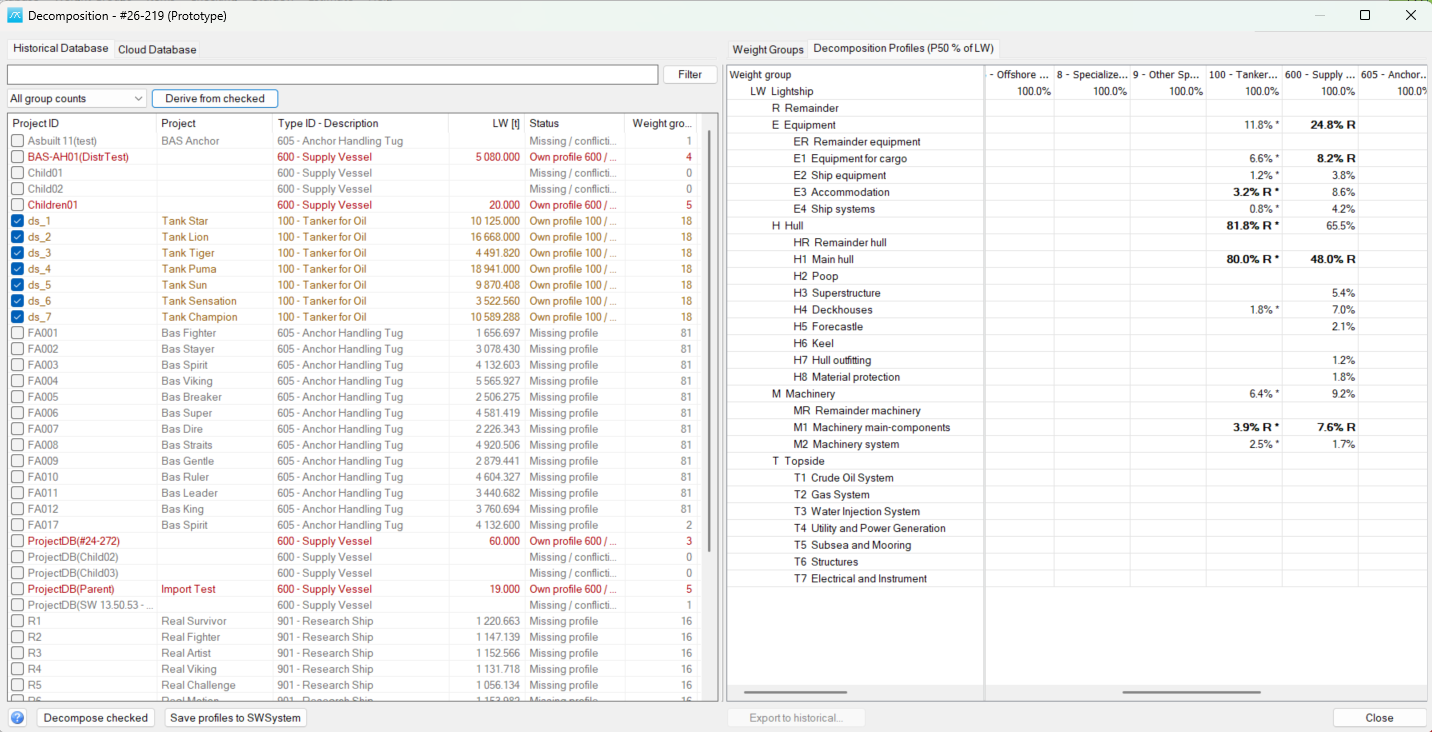
Select source projects
Select Historical Database or Cloud Database on the left. The corresponding database must be connected. The project list shows Project ID, Project, Type ID - Description, LW [t], Status and Weight groups.
Enter part of a project ID, name or type description and click Filter to narrow the list. Use the group-count list to show All group counts, 1 group (LW only) or More than 1 group. The LW-only choice is useful when looking for projects that need a more detailed breakdown.
Check the projects you want to calculate. Selecting a row displays that project's current weights and proposed distribution on the right; selecting a row and checking it for processing are separate actions. The project-list right-click menu offers a command to check or uncheck all listed projects. Hover over the list for guidance and the latest operation or validation status.
A project needs a valid, positive LW. Conflicting stored LW values or an unavailable distribution can prevent calculation. The weight columns in this window are explicitly in tonnes [t], including when the open project normally displays other weight units.
Understand percentages and profiles
All factors are percentages of the project's total LW, including factors for nested groups. For example, if a parent represents 30% of LW and its children represent 10% and 20%, the children balance the parent. Entering 10% does not mean 10% of the parent's weight.
The Decomposition Profiles (P50 % of LW) tab shows factors stored in the system database (SWSystem), organised by project type. A project first uses the factor for its subtype, then its main type, and finally the general profile where a more specific factor is unavailable. A blank cell allows inheritance; an explicit zero specifies a zero share.
Select an editable factor cell, then click it again or press Enter to edit it. Enter a percentage from 0 to 100. The profile-factor right-click menu can mark a group as a residual or clear its residual flag. A residual receives the balance left after its siblings have been allocated; only one group among siblings can be the residual. R identifies a residual, and an asterisk identifies an unsaved local profile change.
Save profiles to SWSystem stores the edited profiles for future use and requires permission to edit settings. Editing or saving a profile does not itself export decomposed project weights. Review inherited factors and project statuses before using a profile.
Derive a profile from reference projects
On the Historical Database tab, check one or more suitable reference projects of the same subtype, then select Derive from checked. Use references with a reliable LW and an appropriate group breakdown.
The command creates a local profile draft from the arithmetic mean of the usable, positive group-weight/LW percentages. Although the profile column is named P50, this derivation uses a mean, not a statistical median. Missing or unusable observations are omitted from the relevant calculation; review the sample counts and spread rather than assuming that every reference contributed to every group.
Existing residual choices are retained. Where a residual needs to be suggested, the derivation uses the spread in the reference shares. Review the draft and its balance, make any necessary adjustments, and select Save profiles to SWSystem if you want to keep it. Deriving a profile does not immediately change the stored profile or the reference project weights.
Review and adjust an individual project
The Weight Groups tab compares Current factor [% LW] and Current weight [t] with Decomp.factor [% LW] and, after calculation, Decomp.weight [t]. Unallocated [t] and Detail / validation help identify incomplete or conflicting distributions.
For a project-specific adjustment, select a factor cell, then click again or press Enter. Enter a value from 0 to 100; clearing an override restores the profile factor. These adjustments apply to the selected project in this dialog session and do not edit the shared SWSystem profile.
Use the group checkboxes and right-click menu to control the applicable detail. Omitting a child level omits its siblings together and retains the parent's weight. The menu also offers project-specific applicability and residual choices, Exclude lowest level, Exclude two lowest levels and, when needed, Exclude conflicting detail. Existing remainder helper groups are excluded from the distribution; a profile residual is a separate allocation choice.
If detailed factors are missing or inconsistent, use a defensible coarser breakdown rather than treating blank factors as known weights. Review any unallocated balance. Changes to factors or detail choices invalidate previous results; select Decompose checked again before exporting.
The Weight Groups right-click menu also offers Save distribution... and Load distribution... for a percentage distribution file. Loading a distribution selects a manually supplied distribution instead of resolving the SWSystem profiles. Review it against the current hierarchy before calculation.
The project-list menu includes Equal split (demo), which illustrates an equal distribution among child groups. It is not a reference-derived estimate. Select Use system profiles in the same menu to return to the SWSystem profile workflow.
Calculate and export
1. Check the projects to process and review their LW, type and profile status.
2. Select Decompose checked. Projects without a usable LW or distribution are skipped. Select each calculated project to review its group weights, balance and detail.
3. Resolve missing or conflicting detail and recalculate as necessary. A partial preview does not guarantee that the distribution is valid for export.
4. Check only the calculated projects you intend to write, then select Export to historical.... The historical database must be connected, and export requires ProjectInfo Import permission.
Export replaces historical group weights. Export uses the original project IDs. For each exported project, existing unfiltered WBS00 descendant weight records in the displayed hierarchy are replaced by the calculated breakdown. Existing detailed weights can therefore be removed, including detail omitted from the new distribution. Check the destination database and keep a suitable backup before exporting.
The existing historical LW is retained. If it differs from the LW used for decomposition, export is stopped; calculate from the historical project first. When a cloud project does not yet exist in the historical database, its project information and parameters are copied and its LW is written along with the breakdown.
The export writes group weights, not new item records or estimated centres of gravity. It does not update the cloud source database. The batch is checked before writing and is written in a transaction; an export error prevents the transaction from being committed.
Close and help
Close closes the window. If the shared profiles have unsaved edits, you can save them to SWSystem, discard them or cancel closing. Project-specific overrides and calculated previews are temporary; use the appropriate save or export command for the results you want to retain.
The Help button and F1 open this topic.