Use XML Import-Export to inspect supported XML files, compare their contents with project data and prepare XML output. Open Project > Import > XML File... to access the window. The separate Project > Export > XML File... command is not available in the current release build.
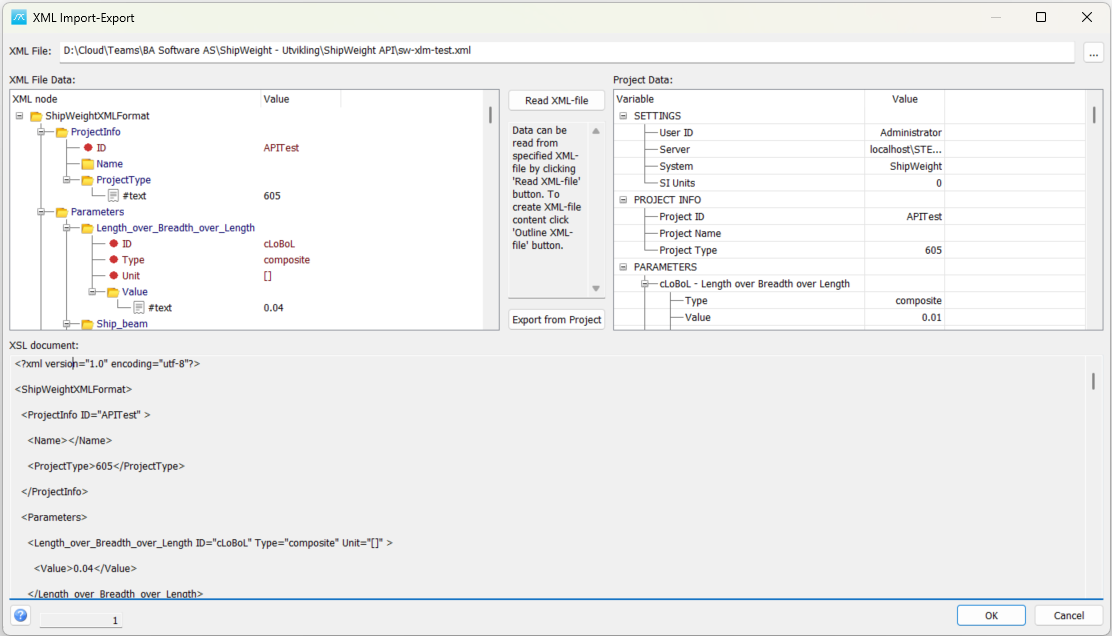
Current limitation: Reading XML into this window does not save the imported values to the project database. Saving imported data back to the project is not implemented in this version; OK can display Save to project not implemented yet. Use the window for inspection and XML preparation, and do not treat a populated Project Data tree as proof that the current project has been updated.
Window areas
XML File: Enter or browse to the XML file to inspect. The ... button opens the file selector and loads the selected file into the XML tree and document view.
XML File Data: Shows the XML hierarchy on the left, including elements, attributes and values. Expand branches to inspect the structure. The right-click menu includes commands to open a file, expand or collapse all branches or the selected branch, copy, print and save.
Project Data: Shows the project data model on the right. Initially it is read from the current project. Reading supported XML replaces or updates this in-memory model, so its contents may differ from the saved project.
XSL document / line indicator: Shows the XML document text below the trees. The interface calls this area XSL document, although it displays XML content. The line indicator identifies the displayed document line.
Read a supported XML file
Read XML-file: Select the file and inspect its root element. Read XML-file recognizes ShipWeightXMLFormat for project XML and APIParamInput for estimation input XML. Other XML formats produce an Unknown XML-format message; an arbitrary XML file is not automatically mapped to project fields.
After reading, inspect Project Data to check the identifiers, parameters, weight-group values and estimation settings. The XML tree right-click menu also has separate commands for reading project XML and estimation XML. These operate on the window data model; database import remains unavailable.
Prepare and save XML output
Export from Project: Build a ShipWeightXMLFormat XML tree and document from the data currently held in Project Data. This updates the displayed XML; it does not by itself write a file. If you previously read another XML file, review the current model before exporting.
Save: After generating the document, right-click XML File Data and choose Save. The save operation writes directly to the path in XML File. Set the intended output name and location before saving. If the file already exists, the program asks for overwrite confirmation and then asks Are you sure? Inspect the saved file afterwards.
For a straightforward export, open the window with the desired project active, generate XML before reading any external data, then save it under a suitable output name.
Additional commands
Copy or print the appropriate tree through its right-click menu. In Project Data, the estimation command uses the selected weight group or selected weight/centre-of-gravity field and its estimation settings to update the window data model. Inspect the result before generating XML output.
The XML tree also offers commands to set weight-group values to zero for the selected group or all groups. These clear the non-blank values and corresponding standard deviations in the window model and regenerate the displayed XML. Use them only when deliberately preparing such output.
The Call API menu command is a diagnostic greeting in the current version, not a general XML import or export operation.
Close and help
OK: Remember the XML file path and close the window. If Read XML-file was used, the application reports that saving to the project is not implemented. OK does not save the generated XML document; use Save explicitly.
Cancel: Close the window without applying its in-memory model to the project. Files explicitly saved through Save remain saved.
Help: Open this help topic. F1 opens the same page.
For other import and export methods, see 4.10 Importing and Exporting Data.