ShipWeight Basics > The Item Window: Entering Weight Information
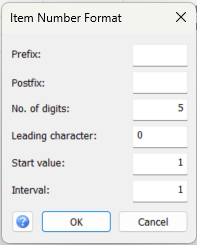
Use the Item Number Format window to define a numbered sequence when renumbering existing items. Open Tools > Renumber Item Code... in the Items window. In earlier versions this dialog was called Item Number Setting.
Prepare the items
Filter the Items view to include the items you want to renumber, then sort them in the required order before opening this window. Renumbering starts at the top of the current list. It updates all items in that view belonging to the current project, not just highlighted rows. Source-project rows displayed through instances are skipped.
This command changes existing ItemNo values. It does not configure automatic numbering for future items. Check the filter and order before clicking OK.
Format and sequence
Prefix: Optional text placed before the padded number, for example EQ-.
Postfix: Optional text placed after the padded number, for example -A.
No. of digits: Minimum width of the numeric part before adding prefix and postfix. With 5 digits and leading character 0, the number 1 becomes 00001. Numbers longer than this width are not truncated. The default is 5.
Leading character: Character inserted before shorter numbers to reach the specified width. Use a single character, normally 0. If No. of digits is filled in, a leading character is required. The default is 0.
Start value: Number assigned to the first item before padding and adding prefix/postfix. Use a whole number. The default is 1.
Interval: Step added to the number for each subsequent item. Use a positive whole number for an increasing sequence. The default is 1. With start value 1 and interval 10, the numbers are 1, 11, 21, and so on.
Example
Prefix EQ-, postfix -A, No. of digits 5, leading character 0, start value 10 and interval 10 produce EQ-00010-A, EQ-00020-A and EQ-00030-A for the first three items.
Apply or close
OK: Apply the format and renumber the items in the current view immediately. The window closes after its required fields have been checked. Choose a sequence suitable for the project and review the resulting item numbers.
Cancel: Close without applying the entered numbering settings.
Help: Open this help topic. F1 opens the same topic from the window.