ShipWeight Basics > The Item Window: Entering Weight Information
Use Item Search to find items in projects stored on a server, inspect their data and, when required, import an item into the current project. Open View > Items on Server... in the Items window. The same window is available from Items > Import/Export > Import from Server...
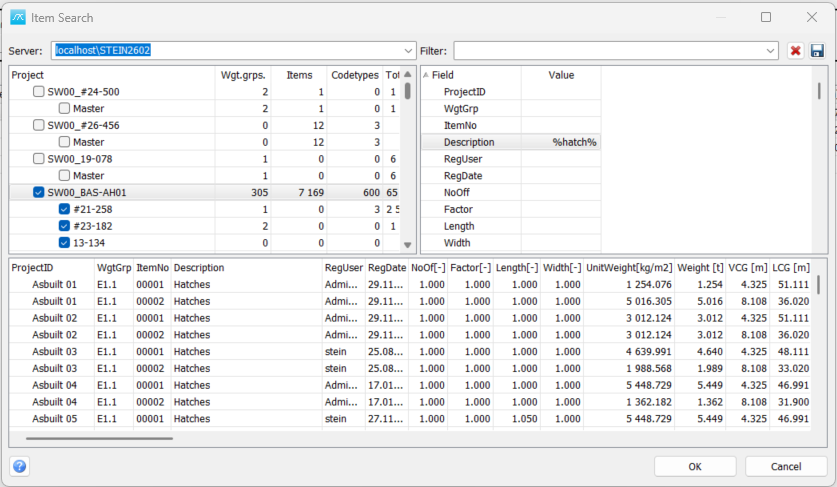
Choose where to search
Server: Choose a server from the list. The project tree shows the available databases and their projects. Access depends on the connection and your permissions.
Project tree: Expand a database and tick the projects to search. You can select several projects within the same database. Selecting a project in another database clears the previous database selection. Check the project checkboxes, rather than only highlighting a tree row.
Matching items appear in the lower table. The results identify the source project, weight group and item number. Drag the vertical divider between the upper panes or the horizontal divider above the results to give the lists more space. The window can also be resized or maximized.
Define a filter
Filter: Select a saved filter or enter a name for a filter you want to save. The name identifies a set of field conditions; typing a name alone does not search item descriptions.
Field / Value: Enter conditions in the Value column beside the required fields. Field names such as ItemNo, Description and WgtGrp refer to item data; custom code fields use their database field names. Blank conditions do not restrict the search. Conditions in different rows are combined with AND, so an item must satisfy all of them.
Text conditions: Text fields use SQL LIKE matching. Enter pump for an exact text match, pump% for text starting with pump, or %pump% for text containing pump. The percent sign matches any sequence of characters and an underscore matches one character. Use % rather than * and enter the pattern without surrounding quotation marks.
Numeric conditions: Enter a number for equality, or begin with an operator such as >, >=, < or <=. For example, NoOff with >1 finds items with a quantity greater than one. Use values appropriate to the underlying field.
For example, select a source project, enter %pump% beside Description and >1 beside NoOff. The results then contain items whose description includes pump and whose quantity exceeds one. Results refresh when you finish editing a condition or change the project selection.
Save and reuse filters
Save icon: Save the current field conditions under the name in Filter. Saved filters belong to the current project. Select the saved name later to reload its conditions.
Delete icon: Delete the named saved filter after confirmation. This deletes the filter definition, not the source items.
Inspect or import results
Right-click the project tree to expand or collapse branches, or print the visible project list. Right-click the item results to access Import Item, Copy and Print. Copy places the displayed table data on the clipboard; Print opens a print preview.
Import Item: Select the required result row and choose Import Item from its right-click menu. The confirmation identifies its weight group and item number. On confirmation, the program imports that item into the current project. Existing matching items may be edited, as stated in the confirmation. Check the source row and destination project before accepting.
Import is a separate action performed while the window is open. OK is not an import button, and closing with Cancel does not undo an import already performed.
OK: Close the window, offering to save changed filter settings when necessary.
Cancel: Close without saving unsaved filter changes. Filters already saved and items already imported are retained.
Help: Open this topic. Press F1 for the same help page.
If no items appear, check the selected server, database and project checkboxes, then clear or simplify the field conditions. For text searches containing a word, use %word%. Confirm that your connection has access to the source data.