Reference Project View Setting defines the tabs and columns in the Reference Projects window. Use it to create views that combine project information, parameters and weight-group values for comparison. Open Reference Projects, right-click in the project list and choose View Settings.
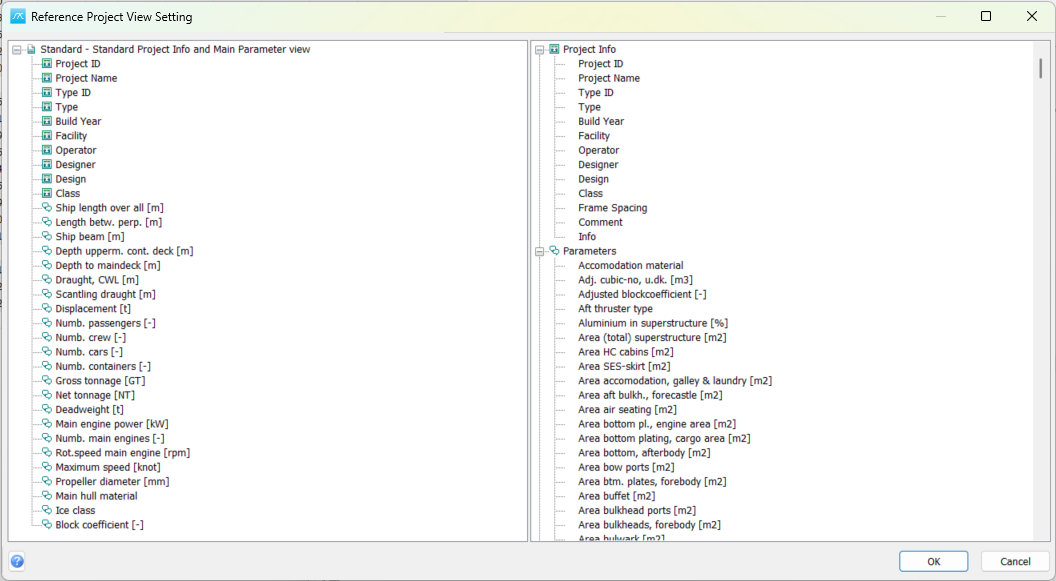
Reference Project View Setting showing the Standard view and its selected columns on the left, with available fields on the right.
The two trees
The left tree contains the configured views. Each top-level entry is a view, and its child entries are the fields included in that view. A view becomes a tab in Reference Projects; the fields become columns in their listed order.
The right tree is the field catalogue. Expand Project Info for identification and descriptive fields, Parameters for the available project parameters, or Weight Groups for weight values from the weight-group hierarchy. The values shown later come from each historical project, so a column can be empty when that project has no corresponding data.
Create a view
Right-click in the left tree and choose Add View to create an empty view. Choose Add Standard View to start with the standard project-information fields and main parameters, or select an existing view and choose Copy View to duplicate it with its fields. New and copied views receive a unique initial ID.
Select the top-level view and choose Rename View to change its ID and description. The label uses the form ID - Description. Keep the ID unique; IDs are compared without regard to letter case. The ID and description can each contain up to 50 characters. Press Enter to accept the edited name, or Escape to cancel the name edit.
Add and arrange columns
Expand a category in the right tree and drag an individual field to the required view on the left. Dropping it on the view adds it as the first field; dropping it on an existing field inserts it immediately after that field. The source field remains available in the catalogue.
Drag a field within the same view to change its column position. Dropping it on the view moves it to the first position, while dropping it on another field places it after that field. Dragging a field to a different view copies it there and leaves it in the original view.
Keep Project ID as the first field in views used in Reference Projects. It identifies the historical project associated with each row. Use the remaining columns for the information needed for the comparison, such as project name, main dimensions and selected weight-group values.
Remove a field or view
Select a field in the left tree and choose Delete Field to remove that column from the view. Alternatively, drag the field back to the right tree. This removes it from the view without deleting the underlying parameter or historical value.
Select a top-level entry and choose Delete View to remove that view and its field list after confirmation. Removing a view changes the display configuration; it does not delete the historical projects.
Save and use the views
Click OK to save the view definitions and field order in the connected historical database. Reference Projects reloads the views so that the saved view IDs appear as tabs. Select a tab to display its configured columns.
The view definitions belong to the historical database, so they can also affect other users who work with that database. They control the displayed columns and do not change which projects are included in an estimate. Set the reference checkboxes separately in Reference Projects.
Click Cancel to close without saving the changes made in this window. The historical database must support view settings; if Reference Projects reports missing view-setting tables, the required database structure must be available before this editor can be used.
Press F1 or click the Help button at the bottom left to open this topic.
Related information