Use the Find Items window to identify items with matching values in selected fields. This is useful when checking a project for possible duplicate items. Items can match even when their item numbers or weight groups differ, depending on the fields you choose.
Open the window
In the Items window, choose Tools > Find > Identical Items. The Find Items window opens with comparison settings on the left, matching groups in the upper result table and individual items in the lower table.
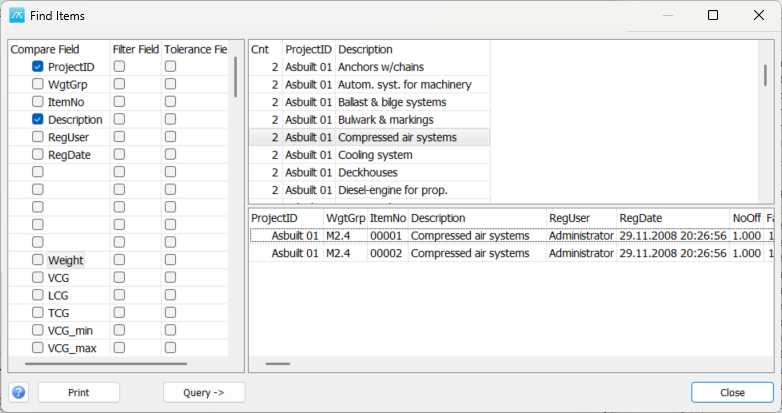
Select comparison fields
Column: Use
Compare Field: Select the fields that must have matching values. For example, select Description and Weight to find items sharing both values. Leave ItemNo and WgtGrp unchecked if you also want to find matches across different item numbers and weight groups.
Filter Field: Enter a value and select the checkbox to restrict the search. Text filters support SQL wildcard patterns: % matches any sequence of characters and _ matches one character. For example, %pump% searches for descriptions containing pump. Numeric filters use an exact value.
Tolerance Field: For numeric fields, enter an integer and select the checkbox to compare rounded values. 0 rounds to whole numbers, 1 to one decimal place and 2 to two decimal places. This setting takes precedence over exact comparison for the same field. It specifies rounding precision, rather than an allowed plus/minus difference. Rounding uses the stored database value; for Weight and centre-of-gravity coordinates, this is the internal SI value.
Run the search and inspect matches
Select at least one comparison field, or enable rounding for a numeric field. Add filters if required.
Click Query ->. The upper result table lists groups containing more than one matching item. Cnt shows the number of items in each group. Rounded fields are shown with minimum and maximum values.
Select a result group to display its individual items in the lower table.
Double-click an item in the lower table to locate it in the Items window.
Changing the comparison settings does not automatically refresh the results. Click Query -> again after making changes.
Example: check for possible duplicates
Select Description and Weight under Compare Field, leaving ItemNo and WgtGrp unchecked. Click Query ->, select a matching group and inspect the listed items. If small numeric differences should be ignored, use Tolerance Field for Weight instead of exact comparison.
A match indicates that the selected values agree; it does not prove that the items are duplicates. Review each group before deciding whether any project data should be changed. The search does not automatically merge or delete items.
Copy, print and close
Right-click either result table and choose Copy Table to copy its contents. Use Print to produce a report of the matching groups and their items. Click Close to close the window.
The Help button and F1 open this topic.